Translation engines
An engine is the service that does the actual translating. When you translate a sentence, TransOne hands it to an engine, gets the result back, and shows it to you. TransOne talks to each engine directly, using your own key or account. There is no relay server of ours in between, so your text never passes through us.
TransOne has 27 engines built in, plus your own Custom API for anything not on the list. That is 28 in total. Some engines need nothing at all to start; most cloud engines need a key you get from that service.
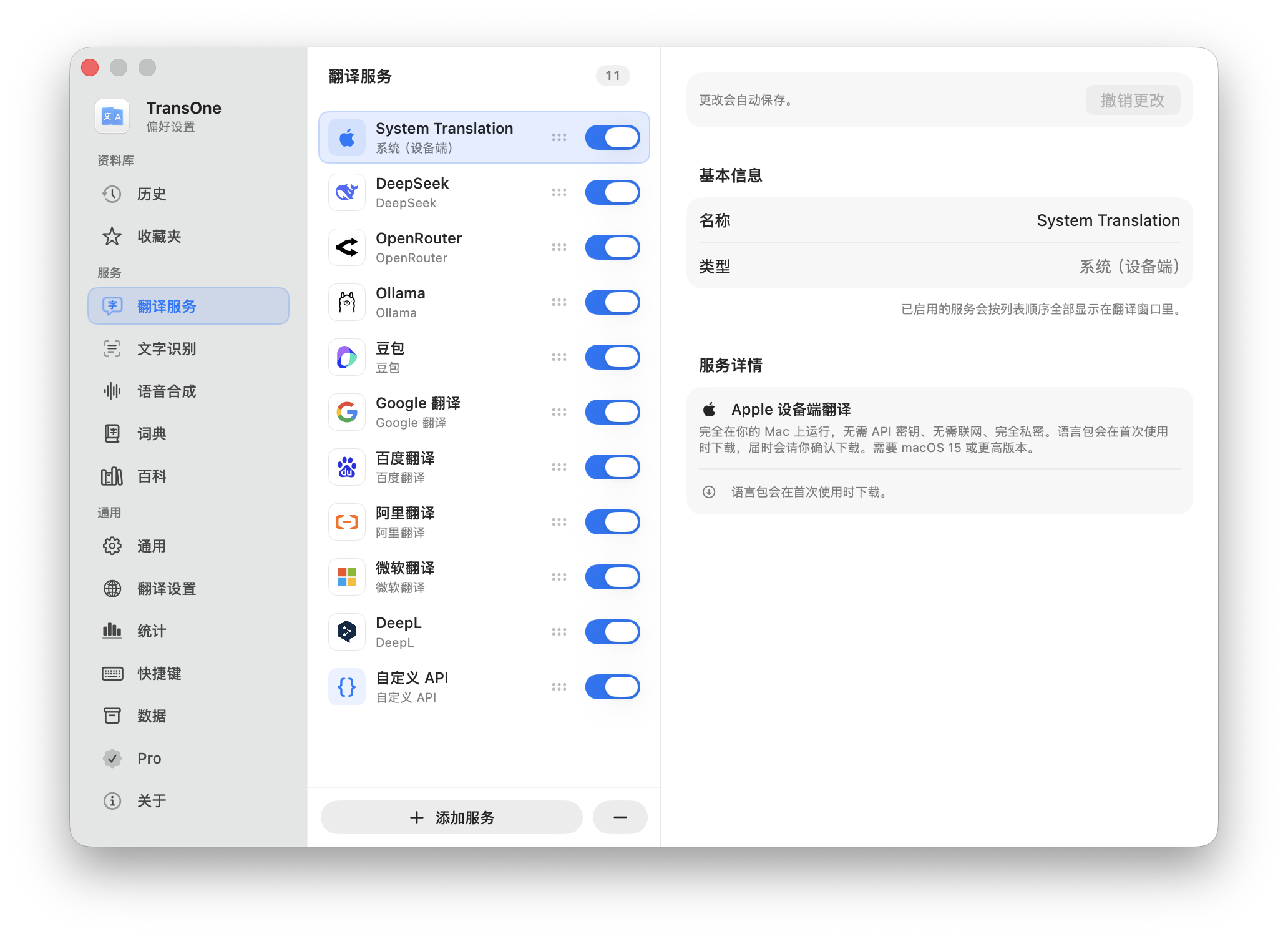
You manage engines in Settings ▸ Translation Services. Open Preferences from the menu bar icon (⌘,) and pick Translation Services in the sidebar.
Engines that need no key
Four engines work without any account or key. Enable one and translate right away.
| Engine | What it needs |
|---|---|
| System (On-Device) | macOS 15 or later. Apple's own translator, runs entirely offline. It downloads Apple language packs on demand: when a pack is missing, the translation window shows a Download button. On macOS 26 or later it can use Apple Intelligence instead (see below). |
| Google Translate (Free) | Nothing. Uses Google's free public endpoint, which can be rate-limited during heavy use. |
| Ollama | The Ollama app installed and running on your Mac. Free and offline. See Local and offline models. |
| LM Studio | The LM Studio app installed and running on your Mac. Free and offline. See Local and offline models. |
TIP
If you just want to translate without signing up for anything, start with System (On-Device) on macOS 15, or Google Translate (Free) on macOS 14.
Apple Translation or Apple Intelligence
System (On-Device) runs on Apple's own technology, so nothing leaves your Mac. Open it in Settings ▸ Translation Services to see which Apple engine does the work.
On macOS 26 or later, an On-device engine menu offers three choices:
- Automatic (the default): uses Apple Translation.
- Apple Translation (on-device): Apple's on-device translator. Works offline with downloaded language packs.
- Apple Intelligence (on-device): Apple's on-device language model. It needs a Mac that supports Apple Intelligence, with Apple Intelligence turned on in System Settings. Long text may translate less reliably than with Apple Translation.
If you choose Apple Intelligence but it cannot run on this Mac right now, TransOne uses Apple Translation instead and says so under the menu. On macOS 15 there is no menu: Apple Translation is always used.
Either way, System (On-Device) only translates. It is not one of the AI engines that can power Polish, Summarize, Study explanations or AI definitions.
Download languages ahead of time
Apple Translation downloads each language the first time you need it. To download languages in advance, for example before a flight, click Translation Languages… in the System engine's settings. It opens System Settings ▸ General ▸ Language & Region; scroll to the bottom and click Translation Languages… there.
What is an API key?
Most cloud services will not translate for a stranger. An API key is a long password that a service gives you so it knows the request is yours. You create it once on that service's website, copy the long string of letters and numbers, and paste it into TransOne one time. From then on, TransOne uses it automatically.
A few things worth knowing:
- The key is stored in the macOS Keychain, the same protected place macOS keeps your other passwords. It is never written into a plain settings file.
- Your key, and the text you translate, are only ever sent to the one service the key belongs to. Nothing goes anywhere else. See Privacy and your data.
- The service may bill you for what you translate, according to its own pricing, not ours. TransOne never handles payment for translation. Check the service's pricing before you rely on it.
Add an engine
- Open Preferences from the menu bar icon (⌘,).
- Go to Settings ▸ Translation Services.
- Click Add Service and choose an engine from the list.
- Fill in its fields (the key, and any region or model it asks for). The tables below say exactly what each engine needs and where to get it.
- Turn the engine on with its toggle.
The engine now translates in the translation window. You can add as many as you like, including several of the same type.
Run several engines at once
You are not limited to one engine. Enable several and each one translates the same text, so you can compare them in the translation window and keep the result you trust.
Drag the engines to reorder them. You can also move through the list with ↑ and ↓. The order is the priority:
- Results appear in this order in the window.
- The first enabled engine is the one that Silent Selection Translation uses, since it replaces text in place and can show only one result.
Not sure which engine you actually rely on? Statistics records which translation you pick most often and ranks your engines for you.
Machine translation engines
These are classic translation services. They translate text and nothing more: they cannot explain a word, define it, or polish your own writing. For that, use an AI engine below.
| Engine | Fields you enter | Where to get them |
|---|---|---|
| Google Translate | API Key | Google Cloud Console, with the Cloud Translation API enabled. Billing required. |
| DeepL | API Key | DeepL API (keys under Account ▸ API keys). Free keys end in :fx and are routed to DeepL's free endpoint automatically. |
| Microsoft Translator | Region (default global), API Key | Create a Translator resource in the Azure portal; the key is under its Keys and Endpoint pane. |
| Baidu Translate | App ID, Secret Key | Baidu Translate open platform. |
| Youdao Translate | App Key, App Secret | Youdao AI open platform. |
| Tencent Translate | Region (default ap-guangzhou), Secret ID, Secret Key | Enable Tencent Cloud TMT, then get the key from the CAM API key page. |
| Alibaba Translate | Access Key ID, Access Key Secret | Alibaba Cloud RAM console. |
| Volcano Translate | Access Key ID, Secret Access Key | Volcano Engine key management. |
| Amazon Translate | Region (default us-east-1), Access Key ID, Secret Access Key | AWS IAM console; Amazon Translate needs no console toggle. |
AI engines
These are conversational AI models. As well as translating, they can power the dictionary's AI definitions, Polish Selection, Summarize Selection and the explanations on the study card. Only AI engines can be chosen for those features.
| Engine | Fields you enter (defaults) | Where to get them |
|---|---|---|
| OpenAI-Compatible | Base URL (https://api.openai.com/v1), Model (gpt-5.4-mini), API Key | This is how you use OpenAI itself: platform.openai.com/api-keys. Or any service that speaks the OpenAI format. |
| Claude | Model (claude-haiku-4-5), API Key | Anthropic Console. |
| Gemini | Model (gemini-3.5-flash-lite), API Key | Google AI Studio. Free tier, no card required. |
| DeepSeek | Base URL (https://api.deepseek.com/v1), Model (deepseek-v4-flash), API Key | DeepSeek platform. |
| Azure OpenAI | Endpoint, Deployment, API Version (2024-10-21), API Key | Create an Azure OpenAI resource and deploy a model; the key is under Keys and Endpoint. |
| Kimi | Model (kimi-k3), API Key | Moonshot AI (Kimi): platform.moonshot.ai. |
| Doubao | Model (doubao-seed-2-0-lite-260428), API Key | Volcano Engine Ark: API Key management. The model can be an inference endpoint ID. For Doubao's translation model, see below. |
| Qwen | Model (qwen-plus), API Key | Alibaba Cloud Model Studio (DashScope). |
| ERNIE | Model (ernie-4.5-turbo-32k), API Key | Baidu AI Cloud Qianfan. |
| Hunyuan | Model (hunyuan-turbos-latest), API Key | Tencent Cloud Hunyuan. |
| Groq | Model (llama-3.3-70b-versatile), API Key | Groq console. Free, no card. |
| OpenRouter | Model (openai/gpt-5.4-mini), API Key | openrouter.ai/keys. |
| 302.AI | Model (gpt-5.4-mini), API Key | 302.ai, from the dashboard after signing in. |
| AiHubMix | Model (gpt-5.4-mini), API Key | aihubmix.com, the API Keys page. |
TIP
To use a local AI model on your own Mac, with no key and no bill, use Ollama or LM Studio from the first table. See Local and offline models.
The model shown is what a new engine starts with. Change it to any model your account can use.
Pick a model from the list
Most AI engines have a small button with a chevron next to their Model field. Click it for a list of that service's current models, type to filter it, and click one (or press Return) to use it. You can still type any model name yourself; the list is only a shortcut.
The list is available for OpenAI-Compatible and DeepSeek (while their Base URL is the default), Claude, Gemini, Kimi, Doubao, OpenRouter, Qwen, Groq, 302.AI and AiHubMix. For the others, including Azure OpenAI, Ollama and LM Studio, type the model name.
The list is downloaded only when you click the button, as a public list of model names; nothing about you is sent. Without a connection, TransOne shows the list that came with the app.
Doubao translation models
Doubao also offers models made only for translation, such as doubao-seed-translation-250915. To use one, add a Doubao engine as usual and pick or type that model name as the Model. An inference endpoint ID (ep-…) does not work for these models.
A translation model:
- translates up to 800 characters per request, and longer text is split automatically;
- shows its result when it is finished rather than word by word;
- supports 28 languages, and says so if you pick a target it does not support;
- cannot be used for Polish, Summarize or Study explanations, and has no Advanced section.
Translations appear as they are written
AI engines stream their answer: the main translation in the translation window fills in word by word instead of appearing all at once. The other engines show their results when they finish. There is nothing to turn on.
Long texts are split for you
Every engine has a limit on how much text it accepts at once. When you translate something longer (roughly 2,000 characters for an AI engine, 1,500 for a machine translation engine), TransOne splits it at paragraph, line and sentence breaks, translates the pieces in order, and joins them back with your original paragraphs intact. While it works, the main card shows its progress, such as 2/5. If any piece fails, the whole translation fails with a Retry, so you never get half a translation by mistake.
System (On-Device) and the Custom API are the exceptions: they always receive the whole text in one go.
Advanced AI settings
Every AI engine (except a Doubao translation model) has an Advanced section, off by default and tucked behind a toggle. When it is off, the engine uses its own sensible defaults. If you have set values before and turn the toggle off, your values are kept, just not used.
Turn it on to control:
- Temperature: a number from 0 to 2. Lower values keep the model close to a literal, predictable translation; higher values let it be looser and more varied. For translation, low is usually best.
- Max Tokens: the longest reply the model may return. Leave it empty for no limit. Setting it too low can cut off the translation; TransOne then reports an error instead of showing a partial result. Max Tokens also limits how much text goes into each piece of a long translation.
- System Prompt: your own translation instructions. Write
{source}and{target}where you want the source and target language names filled in.
INFO
Temperature and Max Tokens apply everywhere this service is used: the translation window, Study and the dictionary. Only the System Prompt is translation-only; Study explanations and dictionary lookups keep their own built-in prompts.
Where your keys are stored
Every key you enter lives in the macOS Keychain, the protected store macOS uses for passwords. TransOne never keeps a key in a settings file, and never sends it anywhere except to the service it belongs to.
To remove every key at once, use Remove All Saved Keys in Backup, reset and keys. Your engine list and other settings stay.
Custom API
If your translation service is not in the list, or you run your own, you can describe it to TransOne by hand and use it like any built-in engine. This is the most technical setup in TransOne, so it has its own page: Custom translation API.
A note on languages
You never have to tell TransOne the source language. It is always detected automatically, for every engine. You can override the source, and the target, per translation from the language bar in the translation window. Those choices last for that one translation. Set your lasting defaults in Settings ▸ Translation Settings.
Next
- Local and offline models: translate with no key and no network.
- Custom translation API: connect a service of your own.
- Statistics: see which engine you actually pick most.