Settings explained
This page lists everything in the TransOne Settings window, so you can find a single option by name. For the settings that have their own detailed page, this one gives a short summary and a link.
Open Preferences
Click the TransOne icon in the menu bar (the strip of small icons along the top right of your screen), then choose Preferences…. The keyboard shortcut is ⌘,.
The window is titled TransOne Settings. It opens at a fixed size and cannot be resized.
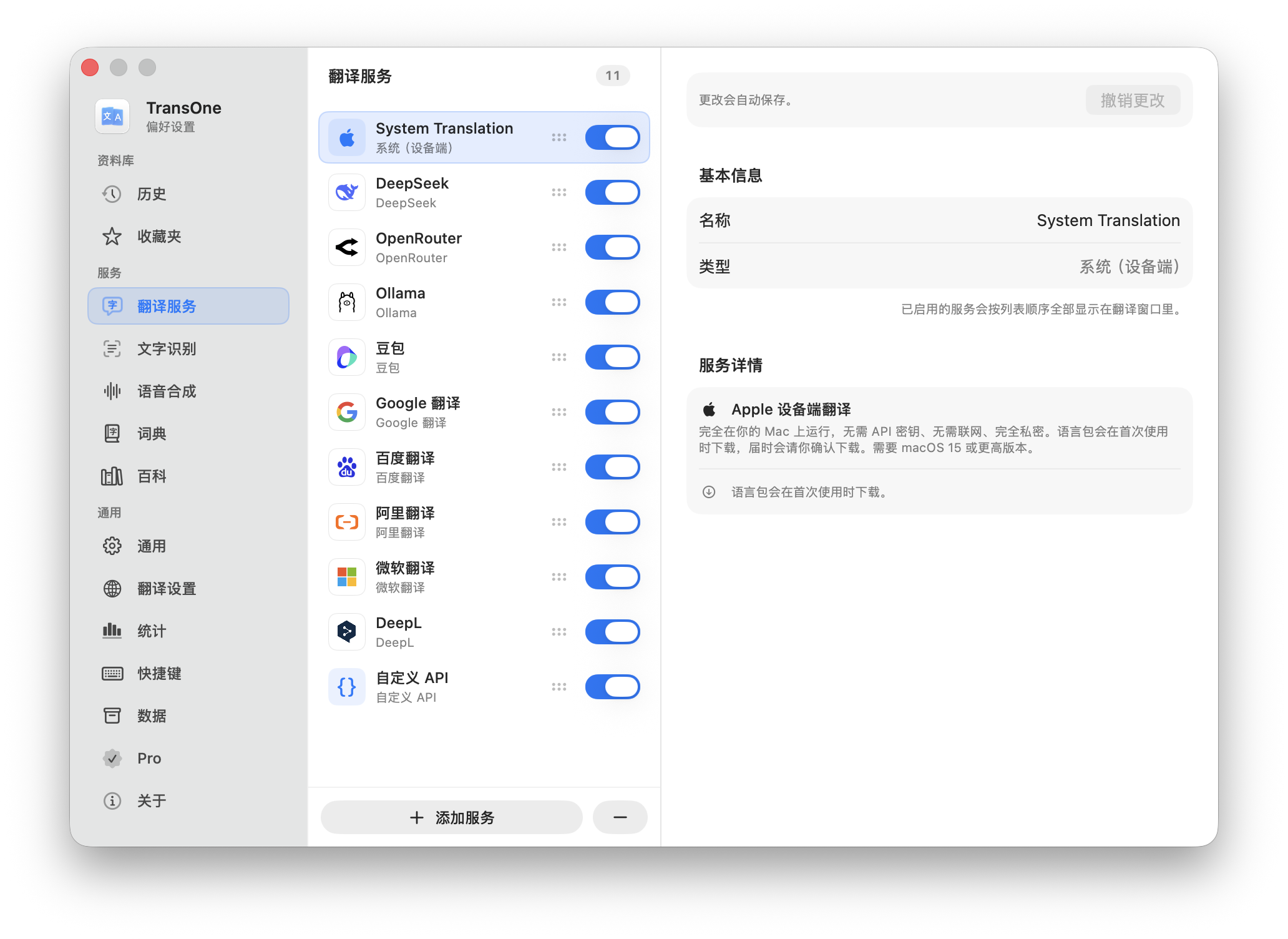
The sidebar
The sidebar has three groups and fourteen pages.
Library
- History: everything you have translated, with an All / Favorites switch for your starred entries. See History and favorites.
- Vocabulary: the words you have looked up, with flashcard reviews and your progress. See Vocabulary notebook.
Services
- Translation Services: the translation engines that turn your text into another language.
- Text Recognition: the engine that reads text out of images. See Text recognition.
- Speech Synthesis: the voice used to read text aloud. See Read aloud.
- Dictionary: the dictionary sources.
- Encyclopedia: the encyclopedia sources.
General
- General: startup, interface language, appearance, menu bar icon and proxy. Described below.
- Translation Settings: your languages and the translation window. Described below.
- Statistics: which engine you pick most, and how reliable, fast and busy each one is. See Statistics.
- Shortcuts: the keyboard shortcuts for every action. See Keyboard shortcuts.
- Data: backup, reset and saved keys. See Backup, reset and keys.
- Upgrade: the free trial and the one-time purchase. Once you have bought the app, this page is labeled Pro. Described below.
- About: version, links and licenses. Described below.
General
The General page holds the app-wide settings.
Startup
- Launch TransOne at login: start TransOne automatically when you log in to your Mac. Off by default.
Language
The app's own interface language. By default it follows your system language (System). TransOne speaks thirteen languages: English, 简体中文, 繁體中文, 日本語, 한국어, Deutsch, Français, Español, Português (Brasil), Italiano, Nederlands, Русский and Polski. Change it here and the interface updates immediately, no restart needed.
Appearance
- Theme: Light, Dark or Follow System (Follow System matches whatever your Mac is set to).
- Window Color: a soft color tint for the translation window only, from a palette of six.
- Background Image: your own picture behind the translation window instead of a tint, with sliders for opacity and blur and a live preview.
Both window options and their details are covered on their own page: Appearance and themes.
Menu Bar Icon
Choose your own image for the menu bar icon, or Remove it to go back to the built-in default. Adapt to menu bar (monochrome) is on by default: it turns the icon into a single-color template that flips automatically to match a light or dark menu bar. A near-square transparent PNG or PDF works best, up to 10 MB.
Proxy
How TransOne connects to cloud services. Mode is one of:
- System Proxy (default): use whatever proxy your Mac is set to.
- Direct: ignore any system proxy and connect directly.
- Custom: enter your own. This adds Protocol (HTTP or SOCKS5), Host and Port, and an optional Username and Password. The password is stored in the macOS Keychain, the encrypted store macOS keeps for passwords.
The proxy applies to cloud services only. The on-device engines never use the network, so a proxy does not affect them. With a Custom proxy, connections to your own Mac, such as Ollama, LM Studio or a Custom API on localhost, go direct and skip the proxy.
Translation Settings
The Translation Settings page controls your languages and the translation window.
First Language
Your main language. Content is translated into it by default. Defaults to your system language.
Second Language
Used when the text is already in your first language, so there is somewhere to translate it to. Defaults to Simplified Chinese if your first language is English, otherwise English.
Common Languages
Which languages appear in the translation window's source and target menus, so you are not scrolling a long list.
Translation Window
- Position: where on screen the window opens.
- Window Height: its maximum height.
- Text Size: a five-step slider.
- Result Display: Focus (one large card, the rest as a list) or Compare (every engine shown in full). This is the same setting as the view toggle in the window's toolbar.
- Preview Full Result on Hover: in Focus mode, hover a collapsed result to preview its full content without promoting it. Disabled in Compare mode, which already shows every result in full.
The Result Priority section below sets which kind of result leads: drag Translation, Dictionary, Encyclopedia and Study into the order you want. The highest-priority kind that has a match becomes the main card; the rest stack below it.
This page also has the settings for Study a language, Polish selection, Summarize selection and Sync to Wordbook Apps, each covered on its own page.
INFO
There is no setting for the source language. TransOne always detects the source automatically, and you can override it per translation in the window's language bar.
Services pages
Each service category has its own page in the Services group of the sidebar.
- Translation Services: the engines that translate your text. See Translation engines.
- Text Recognition: reading text out of images. See Text recognition.
- Speech Synthesis: the voice for reading aloud. See Read aloud.
- Dictionary: real definitions for single words. See Dictionary.
- Encyclopedia: short articles for names and terms. See Encyclopedia.
Translation, Dictionary and Encyclopedia let you turn on several engines at once and compare their results; move through their lists with ↑ and ↓. Text Recognition and Speech Synthesis use one engine at a time: turning one on turns the others off, and the last one that is on cannot be switched off.
Shortcuts
The Shortcuts page lets you set a keyboard shortcut for every action, and holds the Quick Actions like Translate on double copy. See Keyboard shortcuts.
Statistics
The Statistics page shows which engine you pick most often, and how reliable, fast and busy each engine is, so you can see which one is worth keeping. See Statistics.
Data
The Data page is where you back up and restore your settings, remove your saved keys, and reset the app. Three of its actions are destructive, so it has its own page: Backup, reset and keys.
Upgrade
TransOne comes with a 7-day free trial. After that, unlocking it is a one-time purchase. There is no subscription, and updates are free.
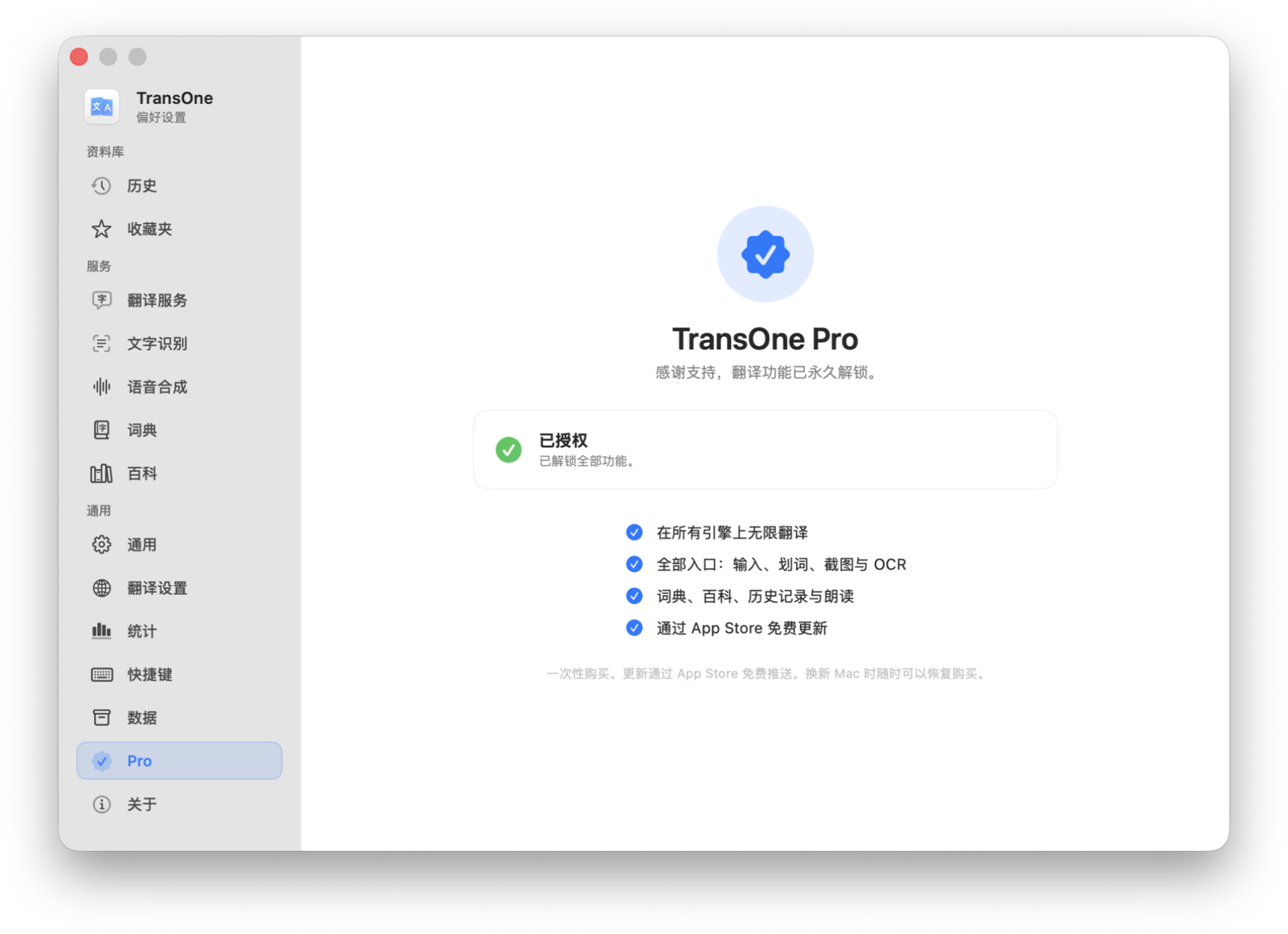
- Upgrade: buy the app. The button reads "Upgrade for" followed by the price in your local currency.
- Restore Purchase: if you already bought it, restore it here. Purchases restore on any Mac signed in to the same Apple Account, so you do not pay twice.
About
The About page shows the app icon, its name and the version. Below them, one card groups:
- Rate on the App Store: leave a review, which helps more people find TransOne.
- Usage Guide: opens this guide.
- Website: transone.app.
- Contact Support: support@transone.app.
- Open Source Licenses: credits the open projects TransOne builds on: Tabler Icons (its icons), KeyboardShortcuts (its shortcut recording) and ECDICT (the offline dictionary data).
- More from Lunadence: the other apps from the same developer.
About TransOne in the app menu opens this page too.