
History and favorites
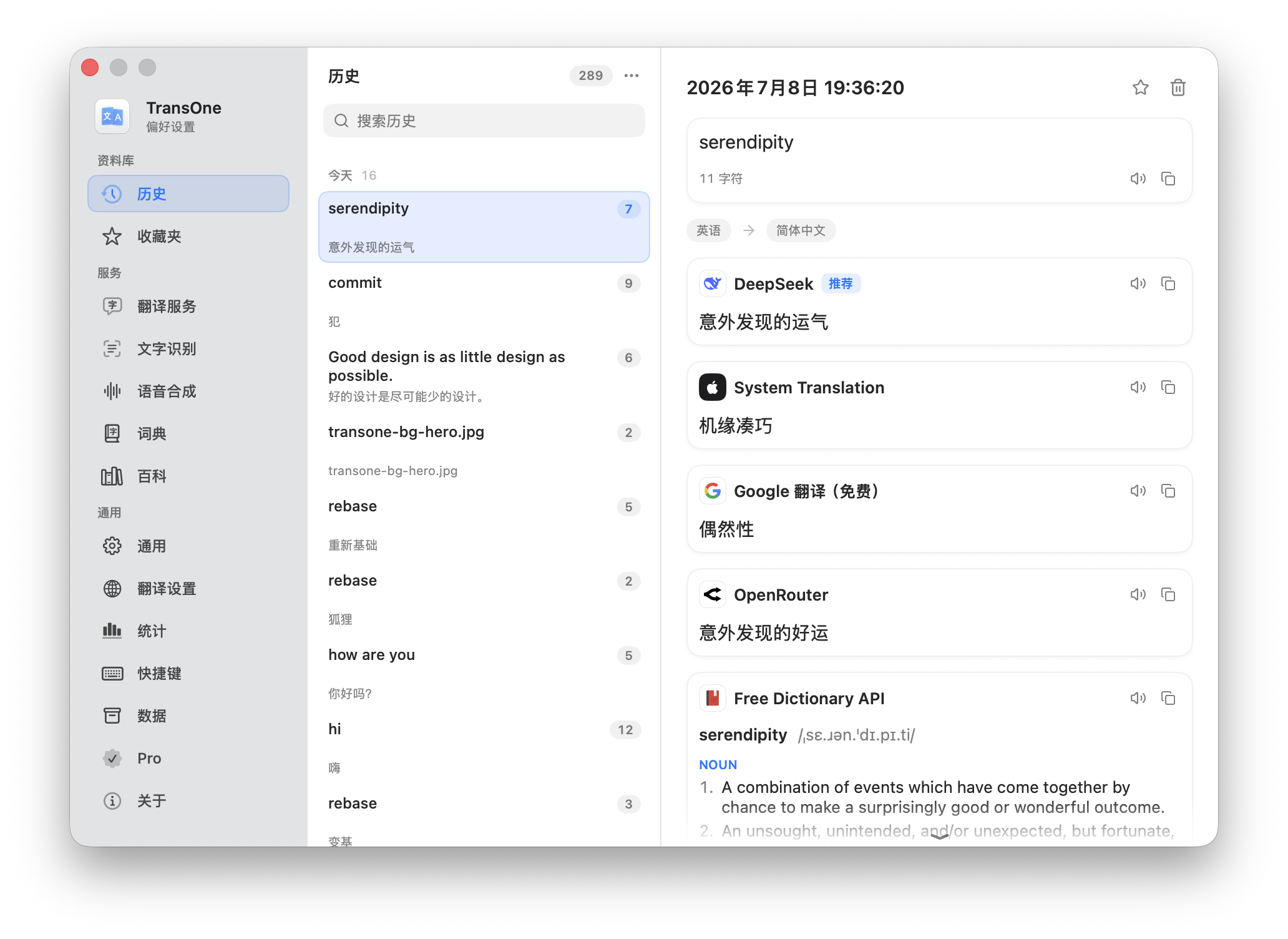
Every time TransOne finishes a translation, it quietly saves the result. You do not have to do anything. Later you can search everything you have translated, open any entry again, star the ones worth keeping, and export the lot to a file. Everything stays on your Mac.
What gets recorded
Each successful result from the translation window becomes one history entry. An entry holds everything that came up for that text:
- the source text you translated,
- the language pair (what it was translated from and into),
- every translation, and any dictionary, encyclopedia and study result that appeared alongside it,
- or, for Summarize Selection, the summary.
Translating the same text again with a different engine does not add a second entry. TransOne finds the existing one and adds the new result to it, so your history stays tidy.
Some things are never recorded: Polish Selection, Silent Selection Translation, Image Translation and reading aloud.
Open your history
- In the translation window, click the History button in the toolbar. It drops down your most recent translations right there; click one to bring it back without leaving the window, or click View All History… at the bottom for the full page.
- Or open Preferences from the menu bar icon and go to Settings ▸ History. It is the first page in the Library group of the sidebar.
Favorites are starred history
Favorites are not a separate collection. A favorite is just a history entry you have starred. At the top left of the History page, switch between All and Favorites to see everything or only the starred entries. Your search and your selected entry stay put when you switch.
There are three ways to star something:
- In the translation window, click the star in the toolbar after a translation.
- On the History page, click the star at the top of an entry.
- Right-click an entry in the list and choose Add to Favorites.
Removing the star takes an entry out of Favorites; it stays in History like any other entry.
Search and browse
Type in the search box at the top of the list to filter your entries. The search looks through the source text, the translations, and the dictionary, encyclopedia, study and summary content, so you can find an entry by any word that appeared in it, not only the text you typed.
Entries are grouped by when they happened: Today, This Week and Earlier.
Use ↑ and ↓ to move through the list, and Home or End (fn← and fn→ on a laptop) to jump to the first or last entry. The arrow keys keep working while you type in the search box.
Select an entry to see it in full: the original text with its Speak and Copy buttons, the language pair, and every result card, each with its own Speak and Copy.
Manage entries
Right-click any entry for these actions:
- Add to Favorites / Remove from Favorites: star or unstar it.
- Copy: copy its first result, usually the main translation.
- Delete: remove that one entry, straight away.
Under the Favorites filter, the menu has only Copy and Remove from Favorites, so nothing gets deleted from there by accident.
The … menu at the top of the list has more:
- Export All…: save your history to a file (see below).
- Keep History: how many entries to keep (see below).
- Clear History…: remove your whole history at once, favorites included.
Under the Favorites filter, Clear History… becomes Remove All Favorites, which only removes the stars. The entries stay in History.
Clear History… and Remove All Favorites ask you to confirm first. Lowering Keep History to a smaller number, on the other hand, takes effect immediately: it drops the oldest non-favorite entries beyond the new limit right away, with no confirmation, so lower it deliberately.
How much is kept
Keep History sets the maximum number of entries: 50, 100, 200, 500, 1000 or Unlimited. The default is 500.
When you reach the limit, TransOne drops the oldest entries to make room. Your favorites are never dropped and do not count toward the limit, so starring an entry is also a way to protect it.
Export your history
Export All… in the … menu saves your history to a single file you can keep, read or process elsewhere.
- Choose All or Favorites at the top of the page. The export takes everything under that filter; a search or a selection does not narrow it.
- Open the
…menu and choose Export All…. - Pick a format and a place to save it:
- Markdown (.md): easy to read, with the original text and every engine's full results.
- JSON (.json): every field, for further processing.
The file is named like TransOne-history-2026-10-21-0930.md (or TransOne-favorites-…). It holds your saved texts and results and never any API keys. When it is done, Show in Finder takes you to the file.
An export is a copy for you to keep; it cannot be imported back into TransOne. To move your history to another Mac, use a settings backup instead.
Stop recording
The History switch at the top right of the page turns recording on and off. It is on by default. When it is off, nothing new is recorded and the star in the translation window has nothing to save, but the entries you already have stay: you can still browse, star, export and delete them.
If you would rather keep history on but small, set Keep History to 50 and use Clear History… whenever you like.
Privacy
Your history lives on your Mac and nothing about it is ever uploaded. There is no account and no server involved. See Privacy and your data.
A backup includes your history and favorites, so they can move with you to a new Mac. Restoring a backup replaces the history already on that Mac.
Related
- Vocabulary notebook, which can import the words in your history.
- The menu bar and the translation window
- Backup, reset and keys
- Privacy and your data